
Magic Wand
There are so many times when I reach for the Magic Wand tool. And I’ve talked about using the Magic Wand in a lot of other posts. One post in particular was “Masks & Wands” back in May of 2025. Any time I reference the Magic Wand tool, I always show you the settings to use. The most important setting is Tolerance. And you know what? I don’t think I’ve ever really explained why that setting is important.
The Magic Wand is a selection tool that can be such a big help. But you have to know how it works in order to get the most out of it. This tool is all about color sampling and creating selections based off of the color first clicked (sampled) ultimately selecting colors that are similar in range to that initial color.
Generally speaking, the Magic Wand allows you to make one-click selections. But that one-click can give varying results based on the tolerance settings used. In this quick tip I’ll explain how the tolerance setting for the Magic Wand works and how to adjust it so making selections is a little easier.
Let’s take a look at how that actually works…
Understanding Tolerance
Just a quick reminder; I use Photoshop Elements (PSE) 2024. If you use a different version, some of my screen shots may not look the same as what you see on your screen.
In short, Tolerance determines the color range of pixels being selected and that range can be set to any number between zero and 255. As far as I am aware, PSE has always defaulted the Tolerance to 32.
Using Low Values (e.g., 10 to 32), the tool looks for pixels that are very close or identical in color to the exact pixel clicked. This is best for high-contrast areas or flat, solid color blocks. High Values (e.g., 100 to 200+) allow the tool to expand its search to include a much broader range of similar or neighboring shades. This is useful for gradients or softer areas, though it may accidentally select unwanted areas (such as shadows or adjacent objects).
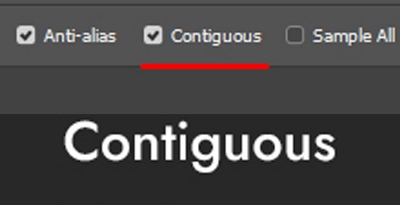
When Contiguous is checked, the Magic Wand only selects pixels that touch each other and fall within the specified tolerance range. If left unchecked, the tool selects all matching pixels across the entire image.
Using Anti-aliasing will smooth out the jagged edges of the selection. I nearly always check this box and highly recommend that setting for everyone.
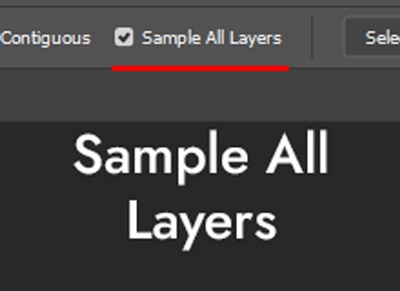
Sample All Layers lets the tool check and select colors using data combined from all visible layers instead of just the active layer. If there is only one layer in the file it wouldn’t matter if this box was checked.
However, if the file has multiple layers, the only time this would be of value is if multiple element layers in the file were of very similar color (like almost exactly the same color). This could be useful in cases where something such as the exact same blue button was placed in multiple locations on a layout and I wanted to recolor all of them to red. But I have found it can get a bit clumsy (for lack of a better word) if the sampled color occurs on layers I don’t want to impact. In general, I typically recommend leaving this unchecked.
Setting Magic Wand Tolerance
I’m going to create a new 12×12 blank file and set my Foreground and Background color chips to the defaults (press D). I then pull in a piece of lovely fall paper:
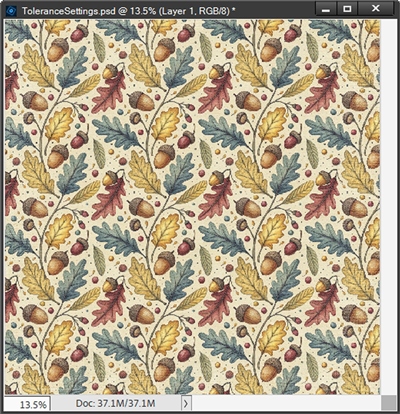
Note: This paper is from “Fall Garden Papers 2” by Wetfish Designs. This paper pack is no longer available at her shop on Gingerscraps but it is available at Creative Fabrica. If you want to follow along and don’t have this exact paper, feel free to use a similar paper that you have on hand.
I immediately simplify this paper layer because I’m going to be performing a destructive action and I save the current file as a PSD and/or JPG with a unique name (FallGardenPaper_Modified) so as not to compromise the original paper.
Some items in this paper are a bit small and I am going to zoom in so I can get a better look at the varying colors:
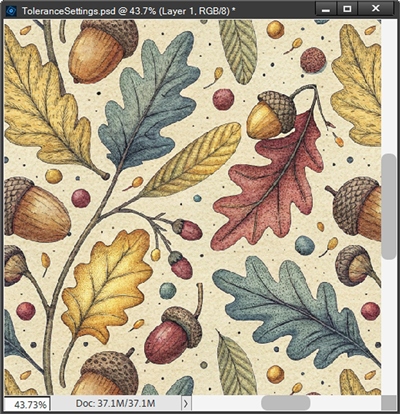
You should now be able to easily see that the blue leaves have varying shades of blue. For fall, I’d rather that those leaves weren’t blue. So, I’m going to change those to a shade of olive (#5b3c21) instead. I set my Foreground color chip to that color.
Next, I grab the Magic Wand tool (press A). Since there are varying shades of blue in those leaves, I may need to play around a bit with the Tolerance setting to achieve a selection that fits my plan. But this will also give me a chance to show you exactly how the Tolerance setting works.
In the tool options, the first thing I do is click the New Selection icon. As I mentioned earlier, PSE defaults the Tolerance value to 32. For right now, I will leave it set there. Even though there is currently really only one layer in my file (my base Layer 1 is empty) I ensure that Sample All Layers is unchecked. Basically, I always do this out of habit.
I then uncheck Contiguous and ensure that Anti-aliasing is checked:
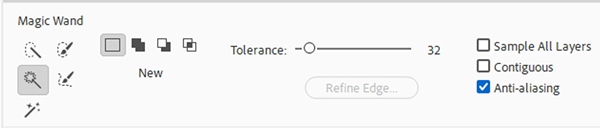
Magic Wand Blue Selection
Looking at the paper again, you should be able to see that not only are there varying shades of blue in the leaves, the leaves aren’t the only blue elements in that paper:
If I click on the lighter blue area of one of the leaves, my selection looks like this:
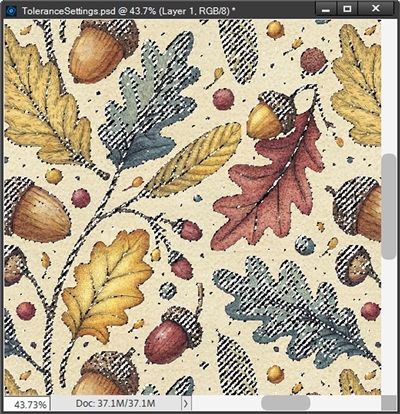
Well, that’s a lot more selected than just the leaves. Clearly, I need to make some adjustments. I’m guessing you think I’ll be changing the Tolerance value. Sometimes that’s the way to go. But with this paper I want to try selecting a different shade of the blue before I resort to changing the Tolerance.
I’ll cancel the current selection (press D or Esc). I need to zoom in just a bit closer so I can find one of the medium shades of blue in a leaf and click on that color:
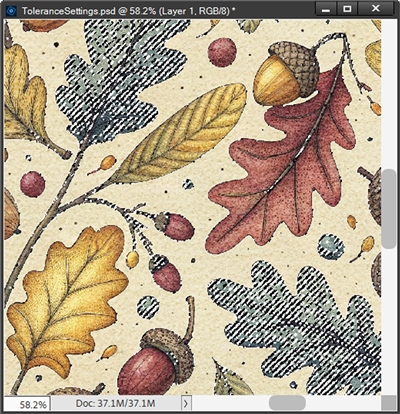
That looks much better. With my Foreground color chip set to the desired color, I press Alt+Backspace to fill the selection with the olive color:
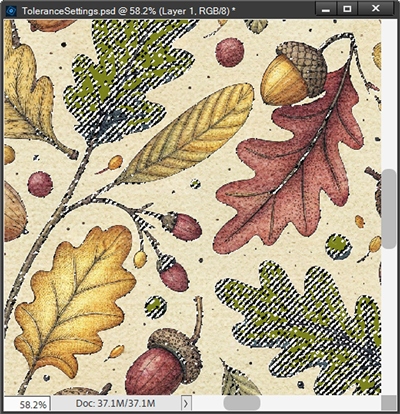
Even without canceling the selection I can tell this looks pretty good. But here it is with the selection canceled:
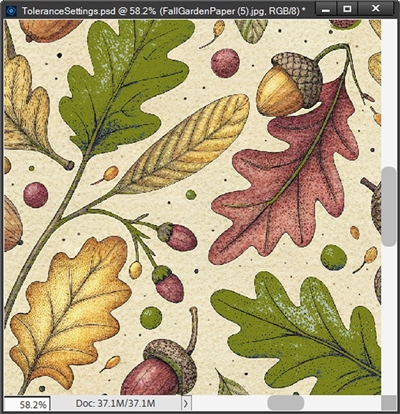
Yes, there is still some blue in the leaves; those small “berries” that used to be blue are now also mostly olive. And there are slight touches of olive in the acorns and some other leaves. But I’m not mad about that. It’s good that the leaves aren’t the only olive elements on the paper.
I’m going to save this file as a JPG again with a different unique name (FallGardenPaper_OliveLeaves01). This way I’ll have a copy of this version before I start trying other options. With that new version saved I can just click CTRL-Z until I undo everything and get back to the original paper.
Note: I do need to make sure that I haven’t undone the simplification of the paper 😉
Let’s see what kind of result I can get by keeping the current settings but lowering the Tolerance value to 25. And this time I’m going to click on one of the lighter shades of blue in a leaf:
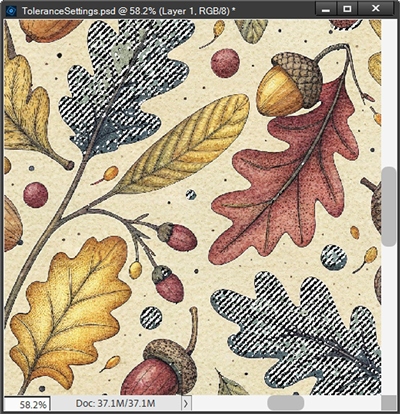
This selection is definitely different than the first one. There’s nothing in the acorns and hardly anything in the other leaves that’s part of the selection. And a there’s a slightly different selection in the blue berries (at least I think). Yes, there’s a bit of the darker blue left in the leaves but that might not be all bad.
Here’s what it looks like if I fill the selection with the olive color and then cancel the selection:
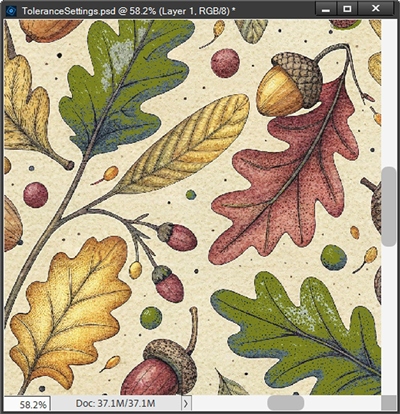
I’m not sure what you might think but I think I like this version better than the first! I really don’t mind that some of the darker blue is still in the leaves. It tends to make the color change look more natural.
I’m going to save this file as a JPG again with a different unique name so I’ll have a copy of this version as well. I was going to try some other options on this particular paper but I decided to change papers.
Magic Wand Burgundy Selection
I’ve reset my Foreground and Background color chips to the defaults (press D). Then I pulled in a different piece of paper from the same pack I mentioned above. This one has more variety in the colors:
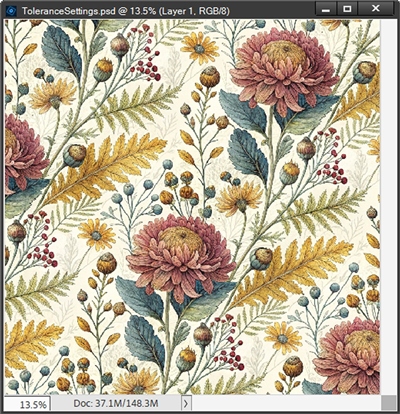
Note: Again, this paper is from “Fall Garden Papers 2” by Wetfish Designs. If you’re following along and don’t have this exact paper, feel free to use a similar paper that you have on hand.
I again simplify this paper layer and save the current file as a PSD and/or JPG with a unique name (FallGardenPaper2_Modified) so as not to compromise the original paper.
This time I want to change the gold colors to a nice autumn purple color (#682860). I set my Foreground color chip to that color.
Because there are so many varying shades of gold, I’m going to initially set the Tolerance to 32. I ensure the New Selection icon is still selected; Anti-aliasing is checked and that Sample All Layers and Contiguous are unchecked.
Next, I click on one of the daisies’ petals:
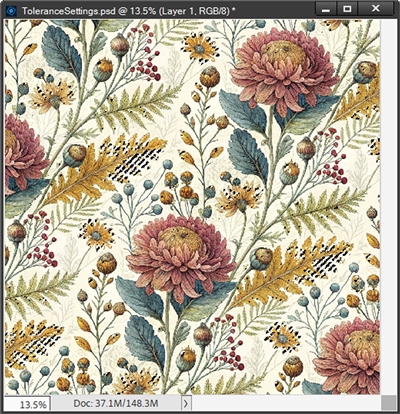
Clearly, I haven’t selected quite all of the gold. I cancel this selection and change the Tolerance to something a bit higher than 32. I’m going to try 45 and click that same daisy petal:
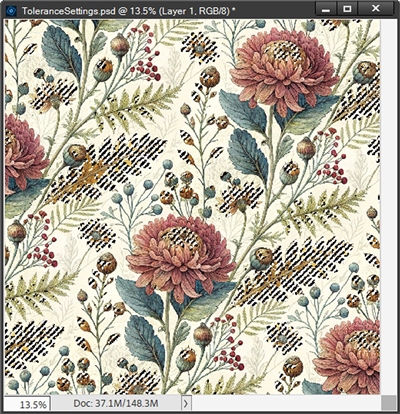
Some of the gold is still missing, mostly in the flower buds. But If I raise the Tolerance much higher, perhaps to 65, I end up with this:
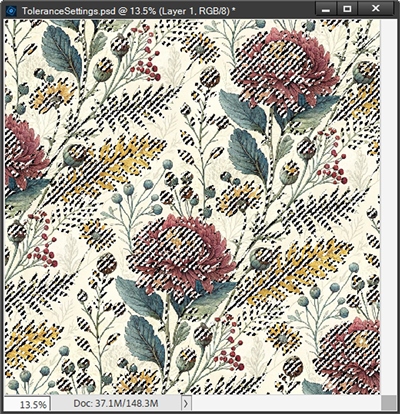
As you can see, PSE is picking up a lot more than just the gold. Now I’m selecting shades of that mauve color and so much more of the green. The reason this is happening is because of the high Tolerance value.
To fix this I would have to mess around with the value trying to zero in on just those gold colors. Trying to keep going back and forth with the Tolerance is sometimes difficult when so many colors have the same hue.
There is one work around for these situations that typically works fairly well for me. I’m going to cancel this selection and set the Tolerance even lower than the original 32. This time I’m going to start at 20:
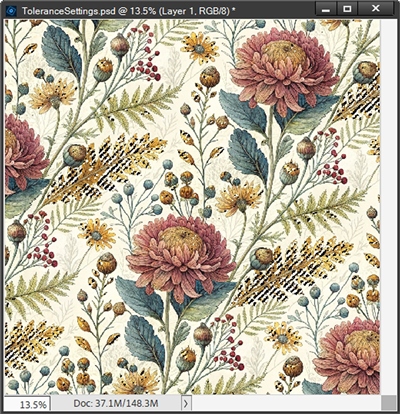
This starts with a much smaller amount of the gold in the selection but it also cut down on the amount of green that was in the first selection for this paper.
From here I’m going to switch to using the Add to selection icon. I’m still leaving the Tolerance at 20 because this will keep PSE from looking at colors outside that range. Now, I just click on different sections of the gold colors until I have what looks like a good selection:
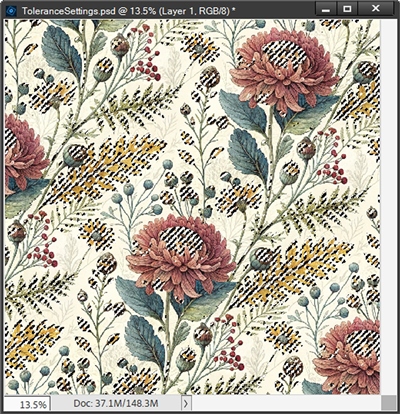
Yes, I still have certain sections of green selected but I’m going to fill the selection with that purple color and see how things look:
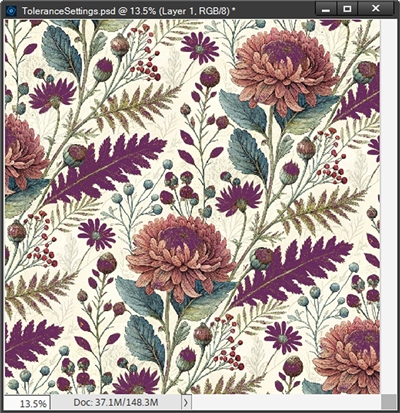
Okay, so perhaps that purple is a bit extreme. I’m going to undo the purple color and get back to the current selection.
Now, if I put that selection on its own layer (Ctrl-J), fill it with a light autumn rust (#a84810) and set the opacity of the new layer to 70%, it doesn’t look too bad:
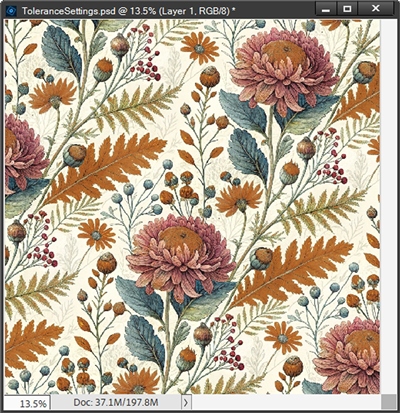
Going to that extra length and the odd colors aside, I think you can see how not trying to force a one-click color selection at a given tolerance can still lead to good results.
Hopefully I’ve given you a better understanding of how Tolerance works. If so, I’d encourage you to try playing around with the Tolerance value the next time you want to make a color driven selection.
Extra Tips

Tolerance can be set to any number between zero and 255. A lower value will mean fewer colors will be selected. A larger value will mean more colors will be selected.
If making the right selection is getting too cumbersome, change the Tool options from New Selection to Add to Selection in combination with a lower Tolerance to select more than one shade of the same color.
Even when the selection looks great, it is often beneficial to place your selection on a layer of its own before recoloring. This way you can also play with different Blend Modes and opacities to expand your ability to control the outcome.

Art is a selective re-creation of reality according to an artist’s metaphysical value judgments. — Ayn Rand
Thanks for reading this week’s Tuesday Tip. Remember, if you have any suggestions or questions please don’t hesitate to “Message Me”. Check back next week for tips about refining edges. Click “Follow Me” to stay in touch. I hope you have a wonderful week!
