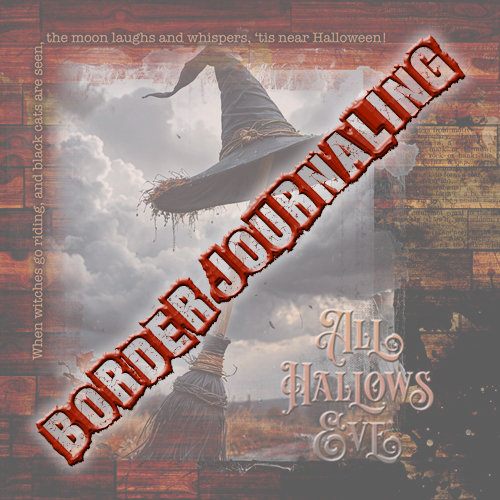
Journaled Shape
Over the years I’ve talked more than a few times about journaling. Back in September I talked about defining your “favorite reader”. Journaling isn’t always easy. I get it! I used to be horrible at it. And I readily admit, it’s still not my strong suit! Because of that, I want to help you out a little with a fun way to get some journaling done quickly. Today I’m going to show you a journaled shape technique.
By using the Type tool and the Shape tool not only can you add interest to your layout; you can sneak in some journaling in a relatively easy and different way.
I talked about placing text on shapes in a post back in March of 2024. What I showed you back then is similar yet not the same as what I’ll be doing today. But if you read that post you should have an easy time picking up on today’s technique.
This technique seems to work best with a layout that is comprised of a rather large photo taking up the majority of the background. That doesn’t mean it can’t work on smaller photos so feel free to experiment.
Note: The featured image at the top of this post is one I created using a layout of mine that features border journaling. If you’d like more information about that layout, you can find it in my 2026 Gallery. The title of this layout is “All Hallows Eve”.
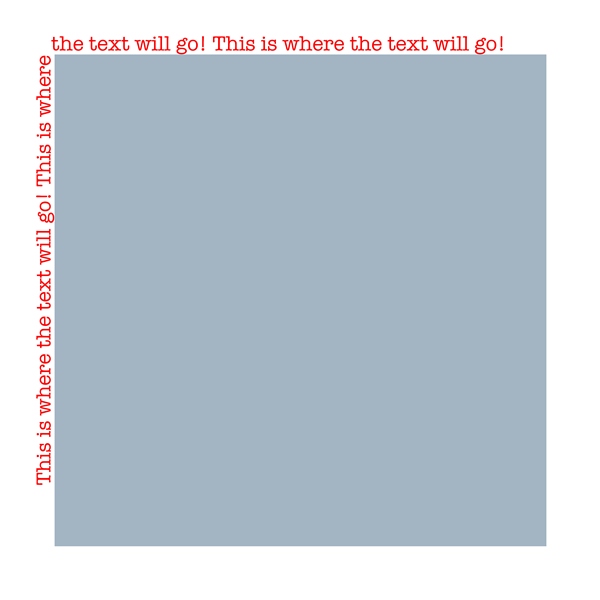
Border Journaling “Template”
Just a quick reminder; I use Photoshop Elements (PSE) 2024. If you use a different version, some of my screen shots may not look the same as what you see on your screen.
Generally speaking, when using this journaled shape technique I tend to have a layout already in progress. Or at least a basic idea of the design I’ll be using. But even when I’m not 100% certain I can at least prepare a base “template” that should work most of the time.
Given that, I’m going to create a new 12×12 file with a white background and set my Foreground and Background color chips to the defaults (press D). I then grab the Rectangle Shape tool.
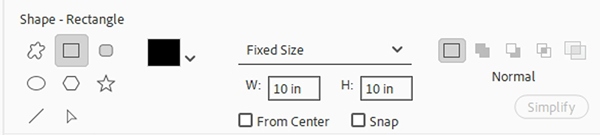
In the tool options I set the geometry (unlabeled) to Fixed Size. Next, I set the width (W) to 10 inches, the height (H) to 10 inches and click the Create new shape layer icon. I also ensure that From Center and Snap are unchecked:
Now I can click approximately 1 inch down and to the right of the upper left corner of the file. PSE automatically creates the square shape:
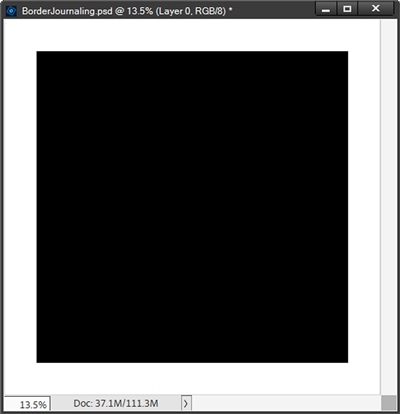
Note: It really doesn’t matter what color the square box is. It won’t be visible in the end anyway. So, you could make your square any color you like!
This looks fairly centered so I don’t feel like I need to worry about actually centering it any differently. If you’re trying to follow along and your square isn’t close enough to being centered, please do try to make it close to centered.
I used specifically used a 10×10 square for my journaled shape base “template” to give me plenty of space. This will allow for enough room on the edges of the square to ensure my journaling doesn’t end up too close to the edge of the file. But again, even if the square was a different size, it can be moved to a better position if necessary.
Now it’s time for the fun part…
Add Journaling For Journaled Shape
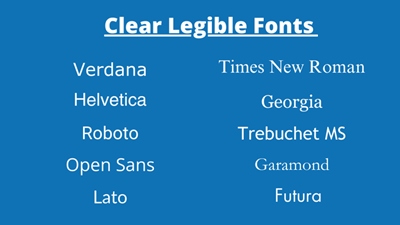
When using this journaled shape technique it’s best to use a print style or handwritten font. Something that is clean/legible and allows the words or characters to stand out sharply from the background. It can be a Serif or a Sans Serif font; steer clear of elaborate, distressed, grungy or “all caps” fonts. Most typewriter style fonts work out well (as long as they’re clean and well aligned). The image directly above lists a handful of fonts that would be good candidates.
Note: Typically, script fonts don’t work out very well around a border so I don’t recommend using those. But you can try one if you’d like.
With my square shape layer active, I grab the Horizontal Type tool. In the Tool options, I set the font to American Typewriter Regular. I could go ahead and leave the color chip set to black (based on my Foreground color chip), but I’m going to change that to a nice autumn orange (#c8693e). Next, I set the Leading to Auto, the Tracking to 0 and click on the Center text icon.

In general, I recommend setting the size to somewhere between 12-16 pts. A larger size can work but it depends entirely on how long the journaling is and how much room is available. I’d definitely recommend against using a size so large that the journaling almost looks as big as the page’s title. As you should be able to see in the settings image directly above, today I’m actually using a Size of 18.
Now I hover my cursor over the top-left corner of the square until I see the I-beam with the wavy line through it. I then click once to place the cursor and type my journaling which wraps around the left and top border of the square. I then click the checkmark to commit:
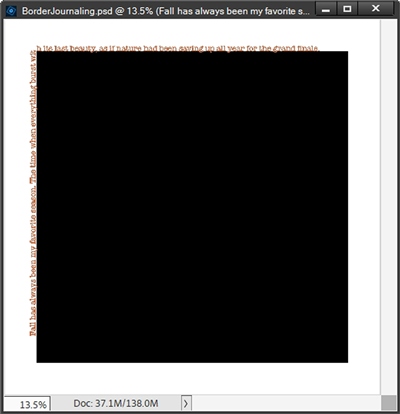
Note: If you don’t see that correct I-beam cursor, go back & double-click on the shape layer’s thumbnail & try again.
I need to zoom in and show you one of the things that can happen when adding the text:
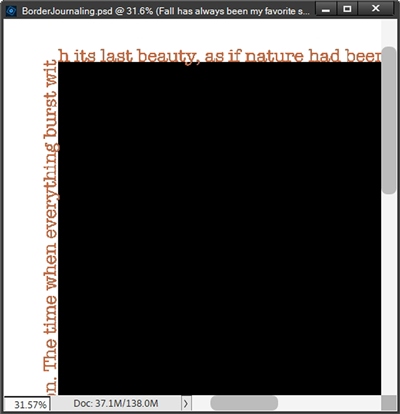
Can you see how the word “with” is split between the letters t & h around the corner? That’s not a good look. But it is very easily fixed. In the Layers Panel, I double-click on the thumbnail of the type layer. PSE highlights the entire line of type.
I press Ctrl+Home to place the cursor at the beginning of the line of type. Now I just press the Space Bar until the corner is no longer splitting the word:
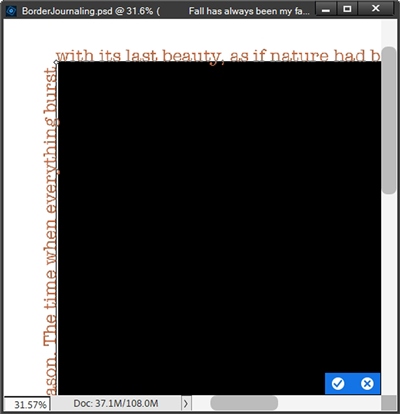
Note: After fixing a split word like this you always want to be sure that the first letter of the word along the top border is fully past the corner (meaning keep it even with the very beginning of the top edge).
This looks good now so I click the checkmark to commit the type. I zoom back out to full view, hide the black square and add my “masked” photo:
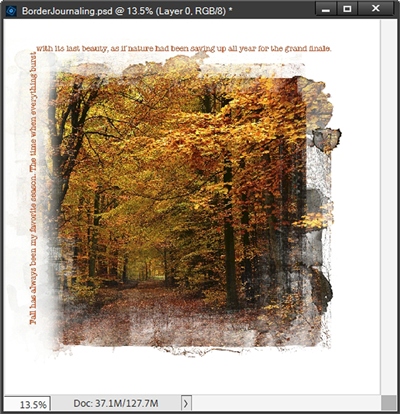
I think this looks pretty good. All I would need to do at this point is copy the type layer to my actual layout and finish it later. Yes, there’s no need to copy the square shape layer; it’s no longer needed.
Before I get to that layout, I did want to let you know you can alternatively have your journaling go across the top and down the right side of your journaled shape. It’s as simple as using the same settings and just placing your cursor at the right corner versus the left.
And it is also possible to have your journaling span the left, top and right sides. Again, super simple. Using the same settings, just place your cursor at the center of the top side.
I typically don’t do three sides and I highly discourage having the journaling span all four sides. I find it cumbersome for people to read the text along the bottom since it will be upside down. But you can certainly give it a try.
And here’s my final layout:
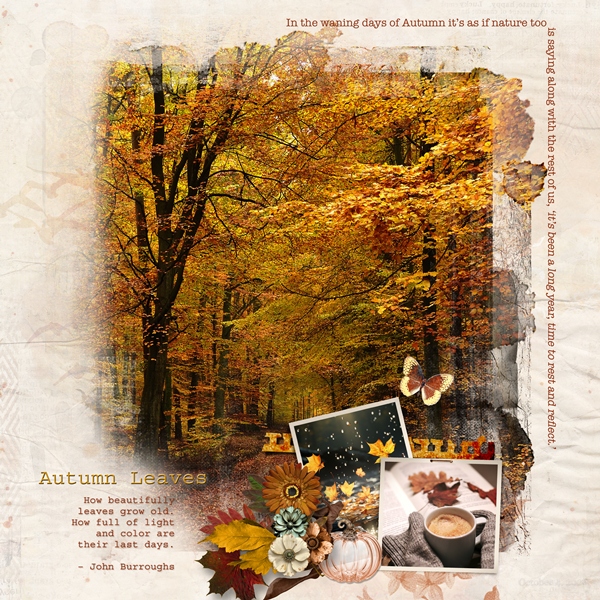
Clearly, you can see I ended up making my photo smaller and moving my journaling to the right side of the page. And I also chose to use a different, shorter border quote. If you’d like more information about this final layout, you can find it in my 2026 Gallery. The title of this layout is “Autumn Leaves”.
And if you’re happy with how creating this little journaled shape template worked, you could save your file as a PSD with a unique name like, BorderJournalTemplate. That square can easily be resized to create different border configurations.
I hope you can see that this technique is fairly easy to use on just about any layout. I hope you’ll give Border Journaling a try.
Simple Tips

Just because I used the journaled border technique around a rather large photo today, it doesn’t mean you can’t do the same thing around smaller photos. You just need to remember that the smaller the area being bordered, the less room you’ll have for the journaling!
For the journaled border it is best to use an easy-to-read font. And I highly discourage the use of curly, busy and/or script-style fonts. It’s also a good idea to avoid using all capital letters. A lot of people look at a whole sentence written in all caps and think of someone yelling!
Remember you can alternatively have your journaling go across the top and down the right side or span three sides (left, top and right sides).
You can also use the Left align text (on the left border) or the Right align text (on the right border) when you add your journaling. This will let you control where exactly on the left or right border you want the text to start or end.
I highly discourage having the journaling span all four sides. It’s cumbersome for people to read the text along the bottom since it will be upside down.

Creative journaling lets you capture your inner voice, celebrate life, and turn everyday moments into art on paper.
Thanks for reading this week’s Tuesday Tip. Remember, if you have any suggestions or questions please don’t hesitate to “Message Me”. Check back next week for quick tips about selection tolerance. Click “Follow Me” to stay in touch. I hope you have a wonderful week!